faq
Tap a question to jump to the answer.
- How can I add new timezones or locations?
- How do I enable timezones to appear in my menubar?
- How do I customize the label for a timezone / location?
- Why does Clocker not show up in my menubar while certain apps are in the foreground?
- How do I start Clocker whenever my Mac boots or is restarted?
- How do I customize the time format for my selected locations?
- Can I show the date (e.g. today) instead of the day of the week?
- How do I reset Clocker?
Adding New Timezones
For adding new time zones or cities, you should navigate to Preferences by opening the Clocker window and clicking on the gear icon (or through the Command + , keyboard shortcut). This is where you can add, delete and edit your time zones.
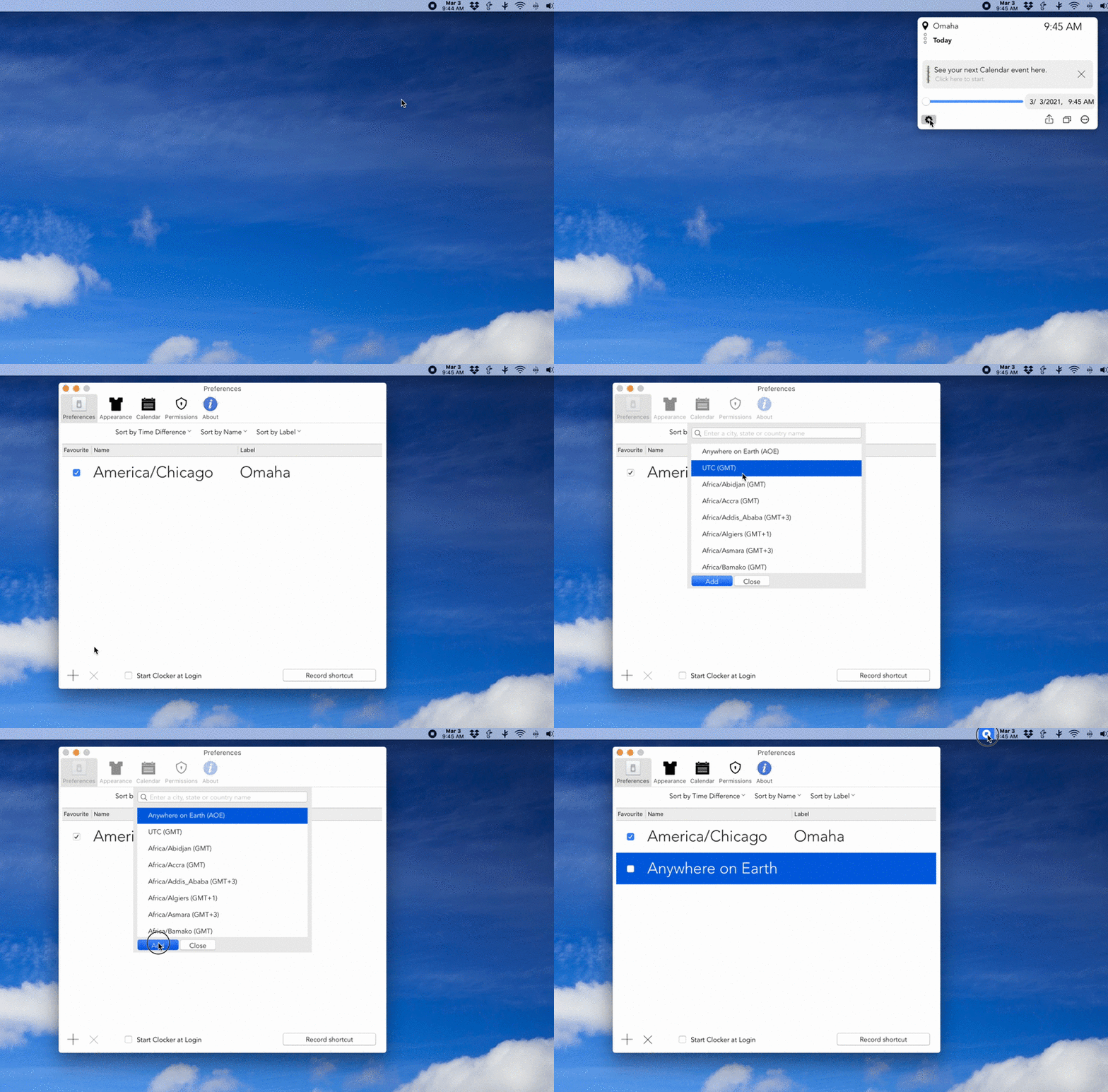
Favourites
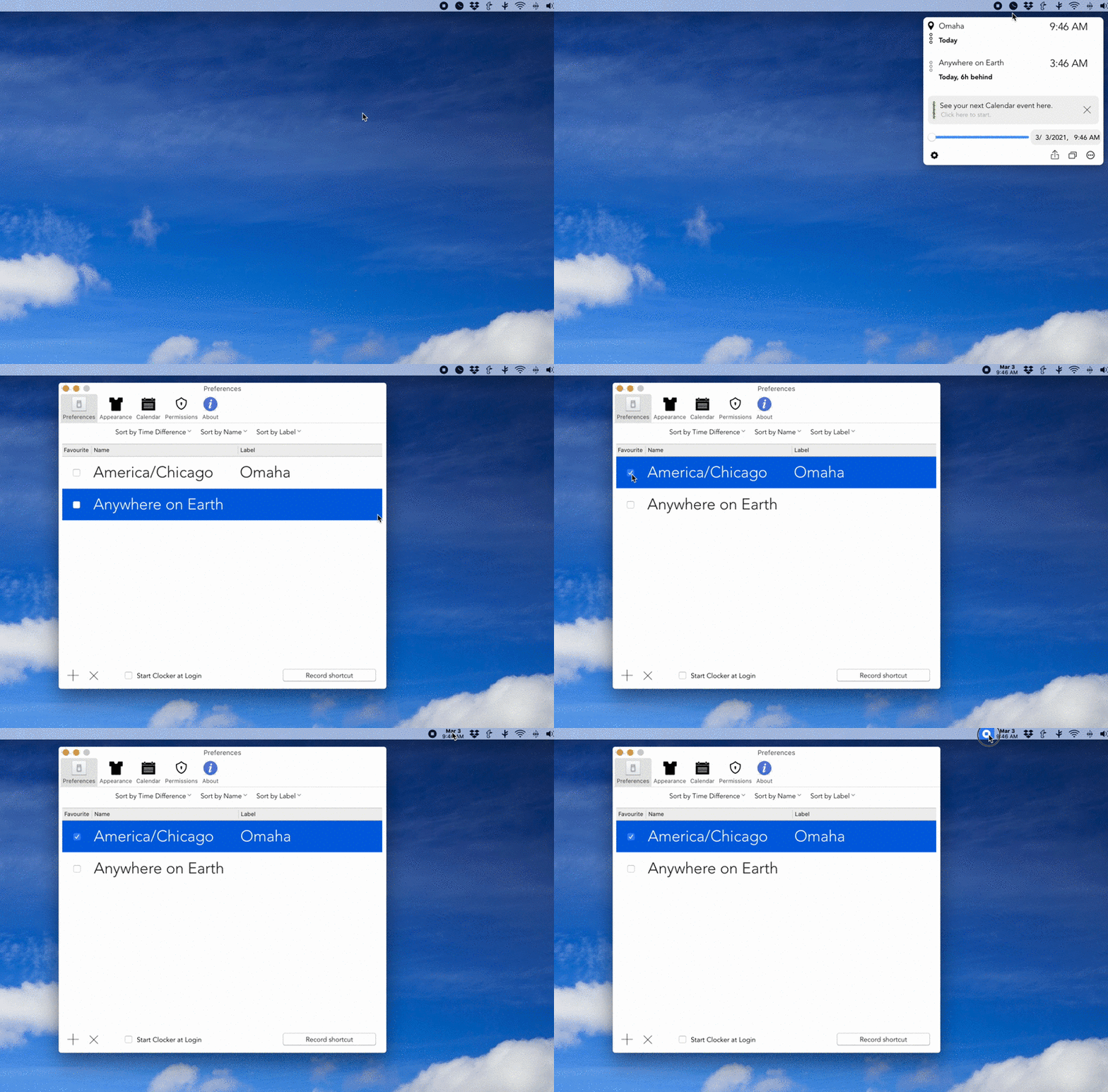
In order to put time zones in your top menubar, you need to favourite them. Here's how you do that:
- Tap on the Clocker icon on the top of your screen
- Click on the gear icon (or use the Command + , keyboard shortcut)
- Click the Favourite checkbox alongside the cities you want to see in the top menu bar
Customizing Labels
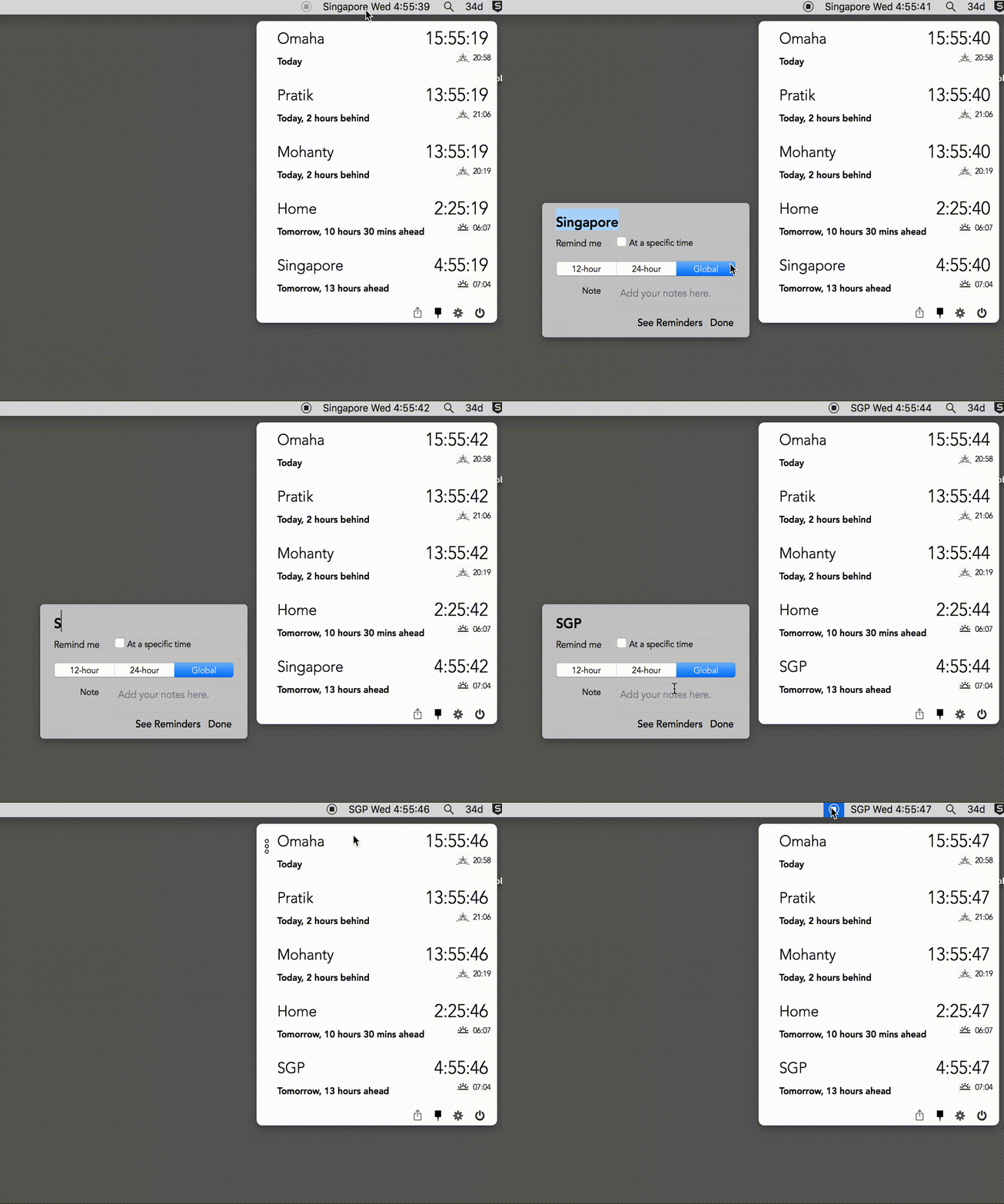
Clocker allows you to edit the names of the timezones or locations you've added. This allow you to map a colleague, friend or a partner to a location reducing the need to mentally calculate who's actually in London.
You can utilize the contextual menu present on left of each row to edit the label:
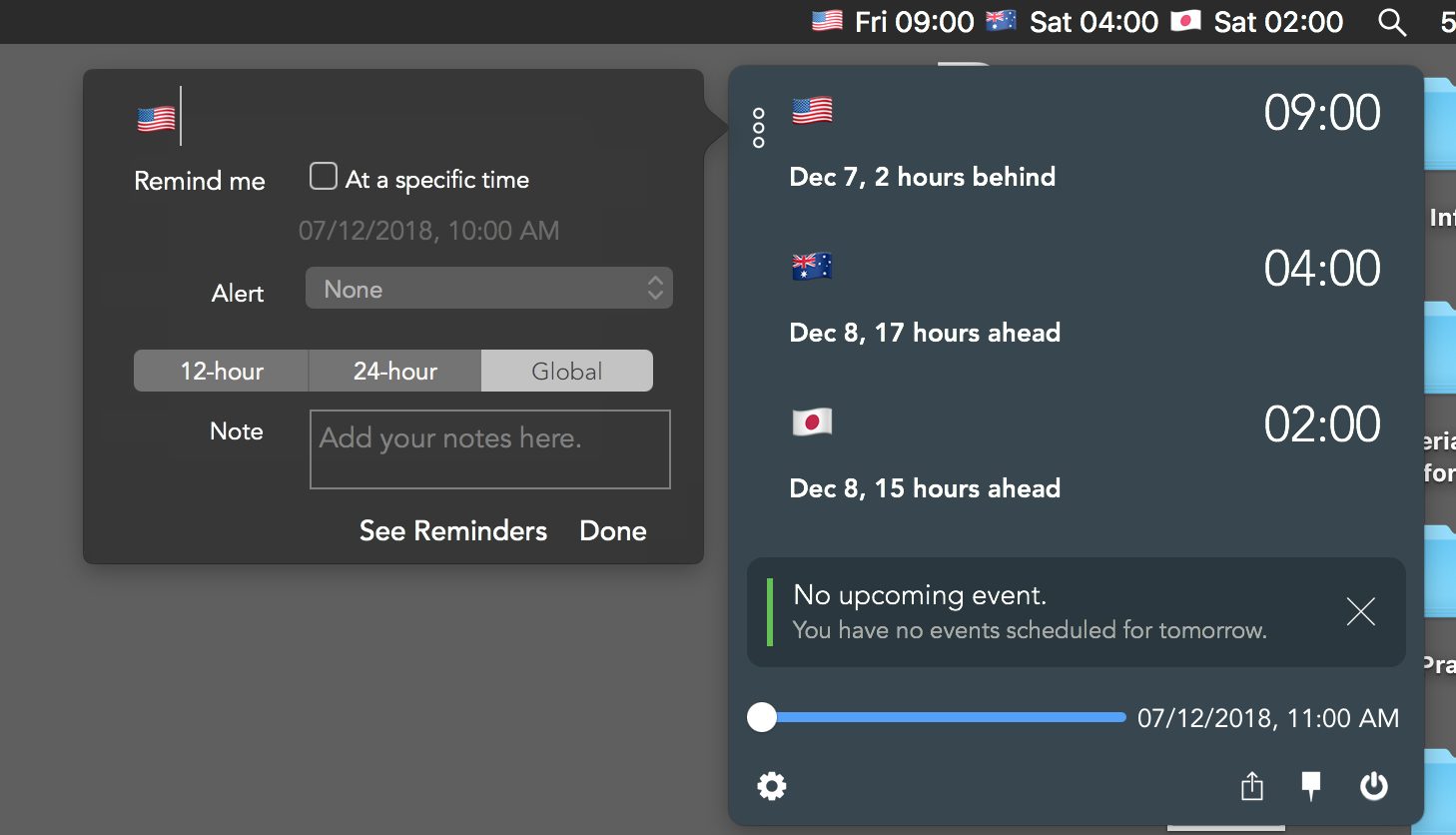
Tip: Use emojis as a label to enhance glanceability.
Starting Clocker at Login
If you'd like Clocker to start every-time you boot your Mac, you need to make sure the app is correctly placed inside the /Applications folder.
After which, you should navigate to Clocker Preferences by clicking the menubar icon and tapping on the gear button in the lower-left corner of the Clocker Window. Preferences can also be accessed using the keyboard shortcut: Command + ,
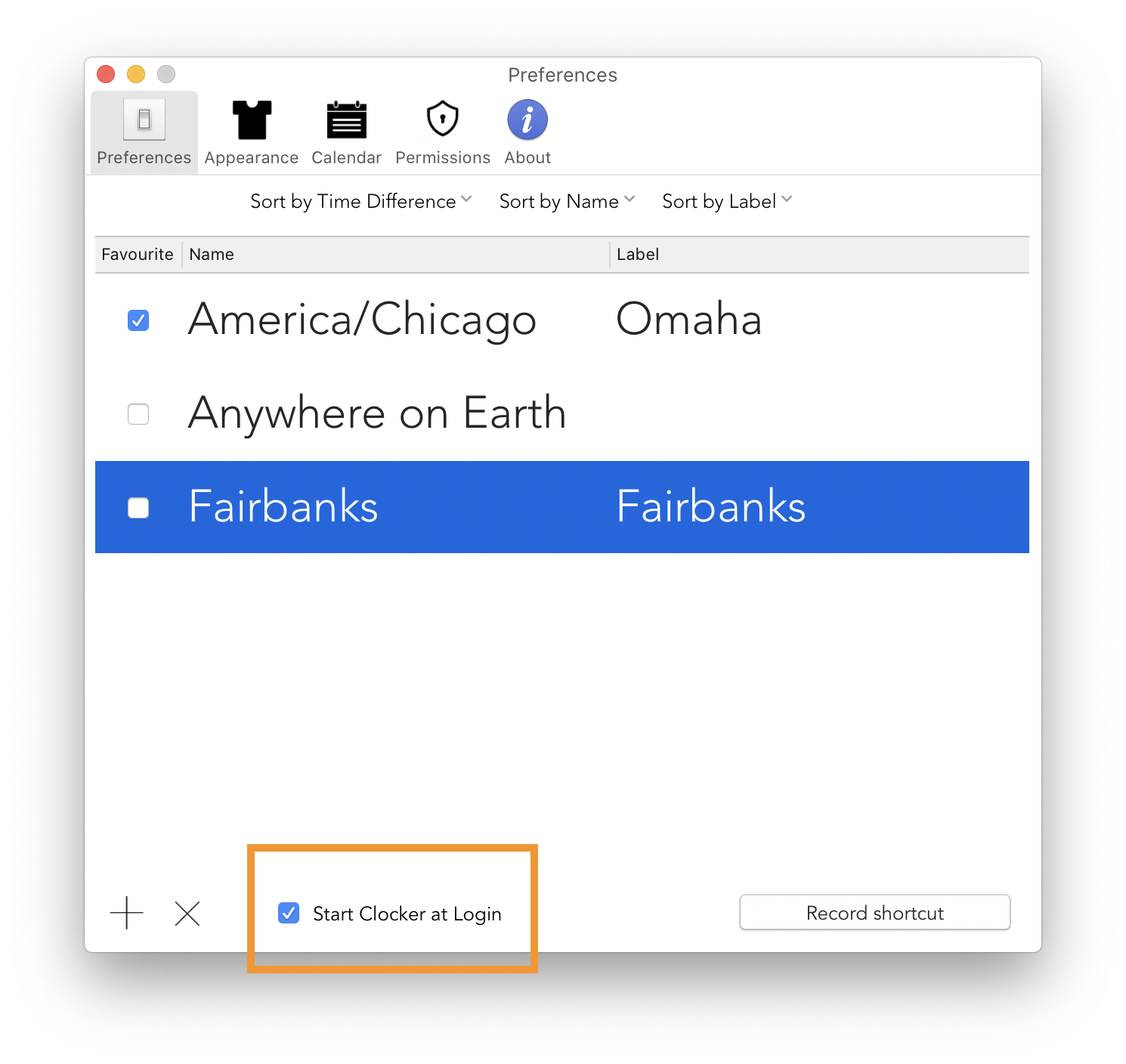
Inside Preferences, make sure the Start Clocker At Login option is checked.
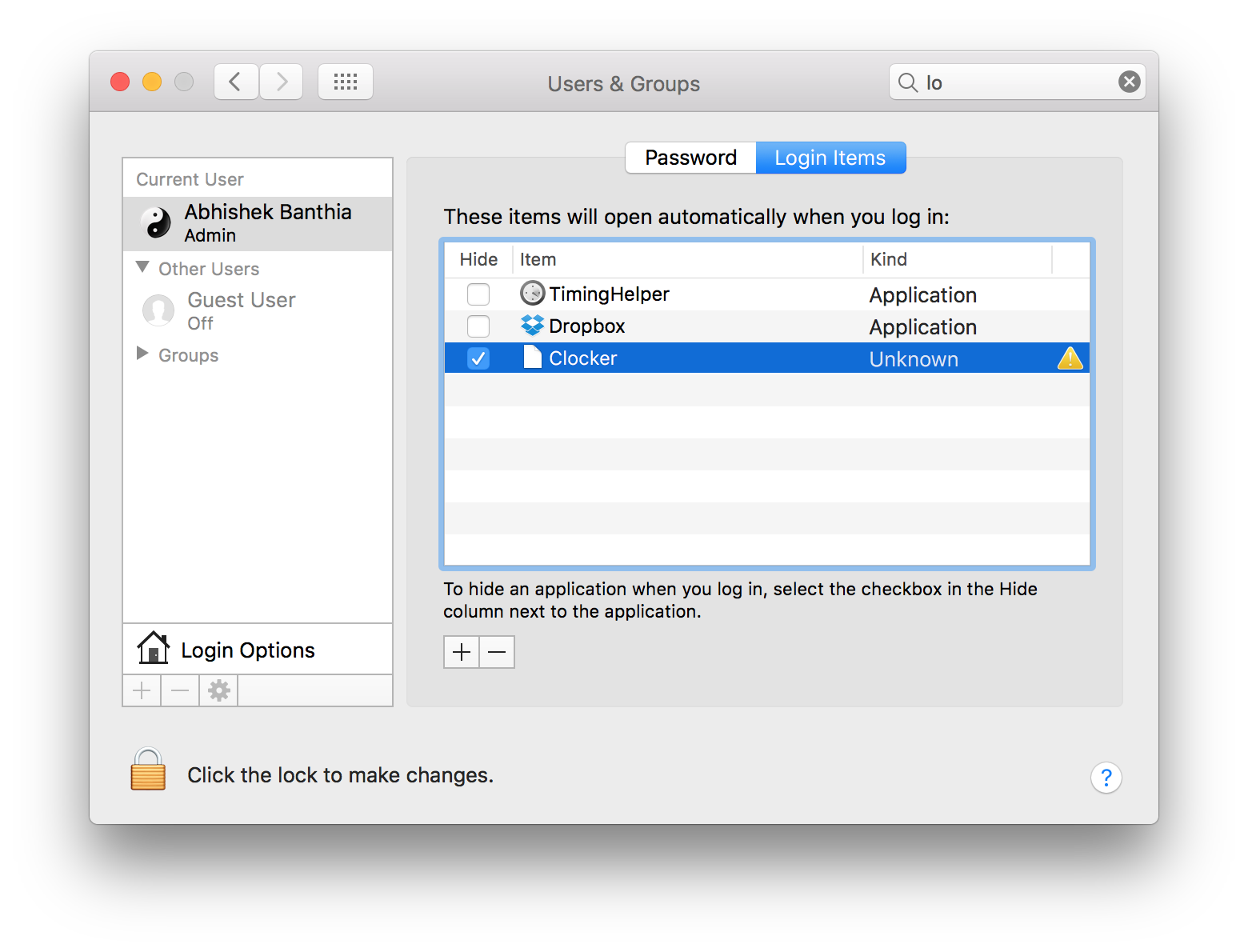
Alternatively, you can add Clocker to the Login Items inside System Preferences. Here's how you do that:
Open System Preferences —> Users and Groups —> Current User. Click on Login Items tab and add Clocker by clicking on + icon.
Customizing Time Format
You can set the time-format for your locations through Clocker Preferences. You should navigate to Clocker Preferences by clicking the menubar icon and tapping on the gear button in the lower-left corner of the Clocker Window. Preferences can also be accessed using the keyboard shortcut: Command + ,
Here, you need to go to the Appearance tab where you can select the time format of your choice.
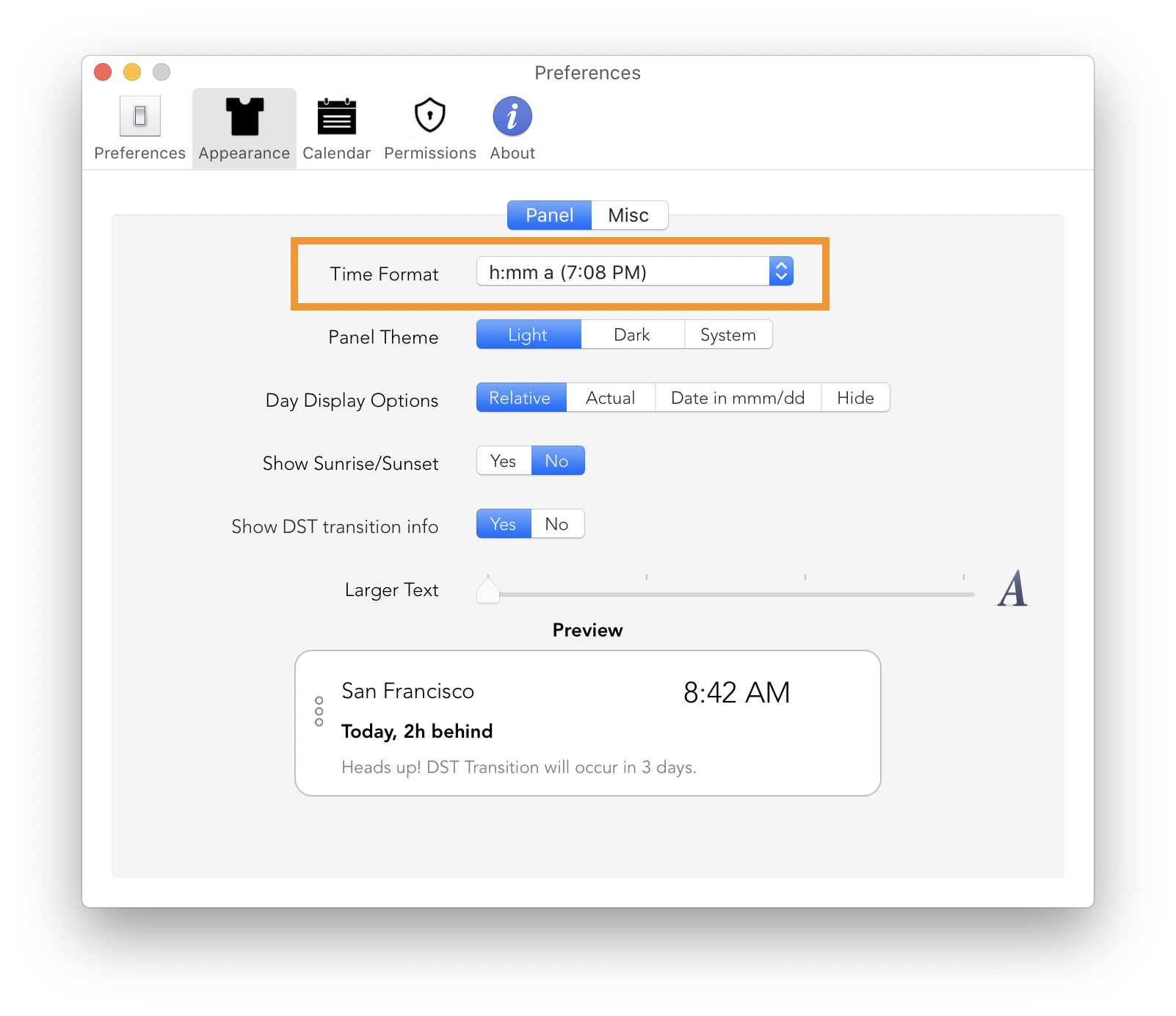
Do remember that the time format selected in the Appearance tab is applied to all locations and timezones.
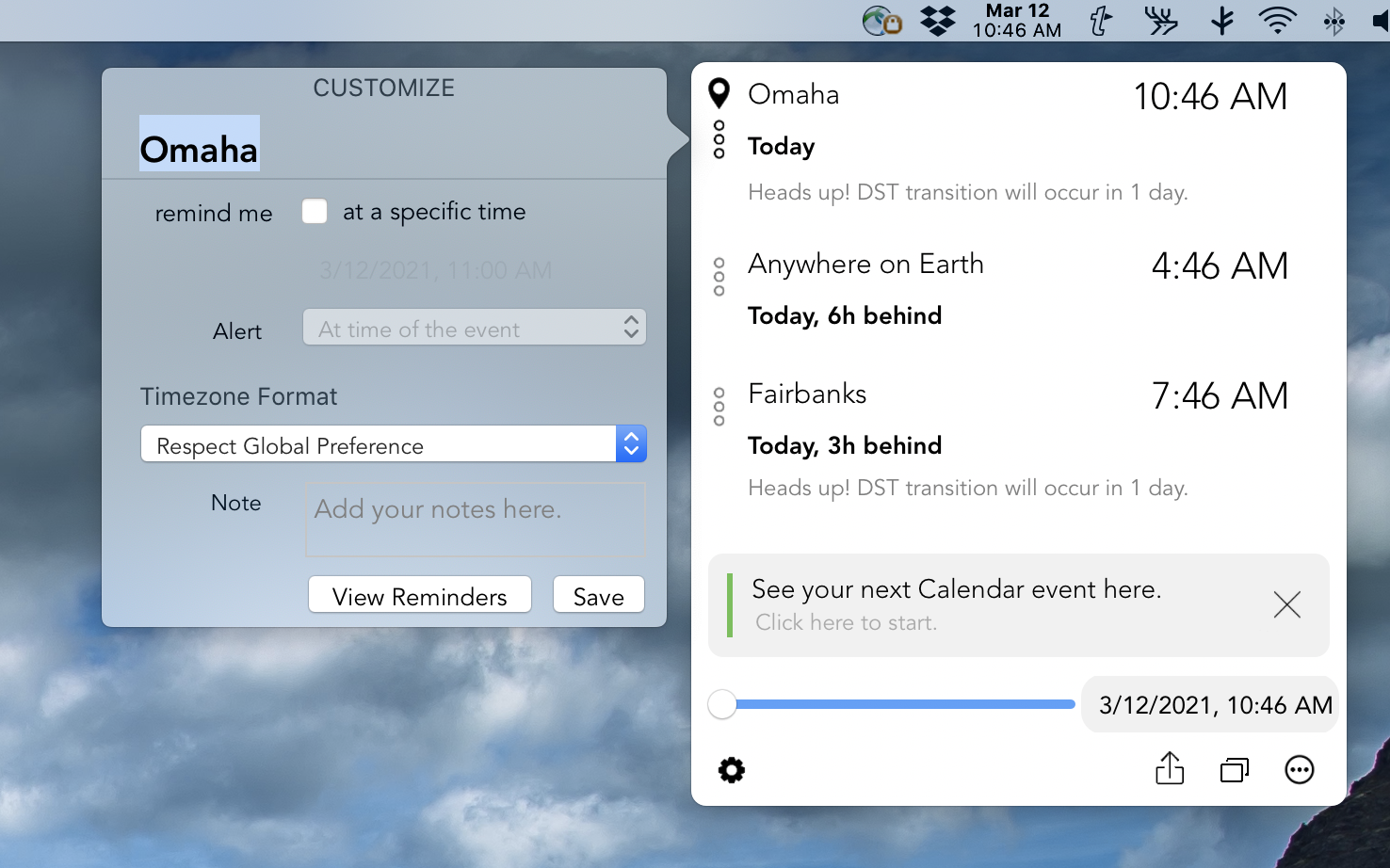
Clocker also allows you to override the timezone format at the individual location level.
To do so, you need to open the Clocker window and tap the three dots button which appears on the left side of each timezone. This is where you can customize and choose a different timezone format.
Change the Relative Display for a location
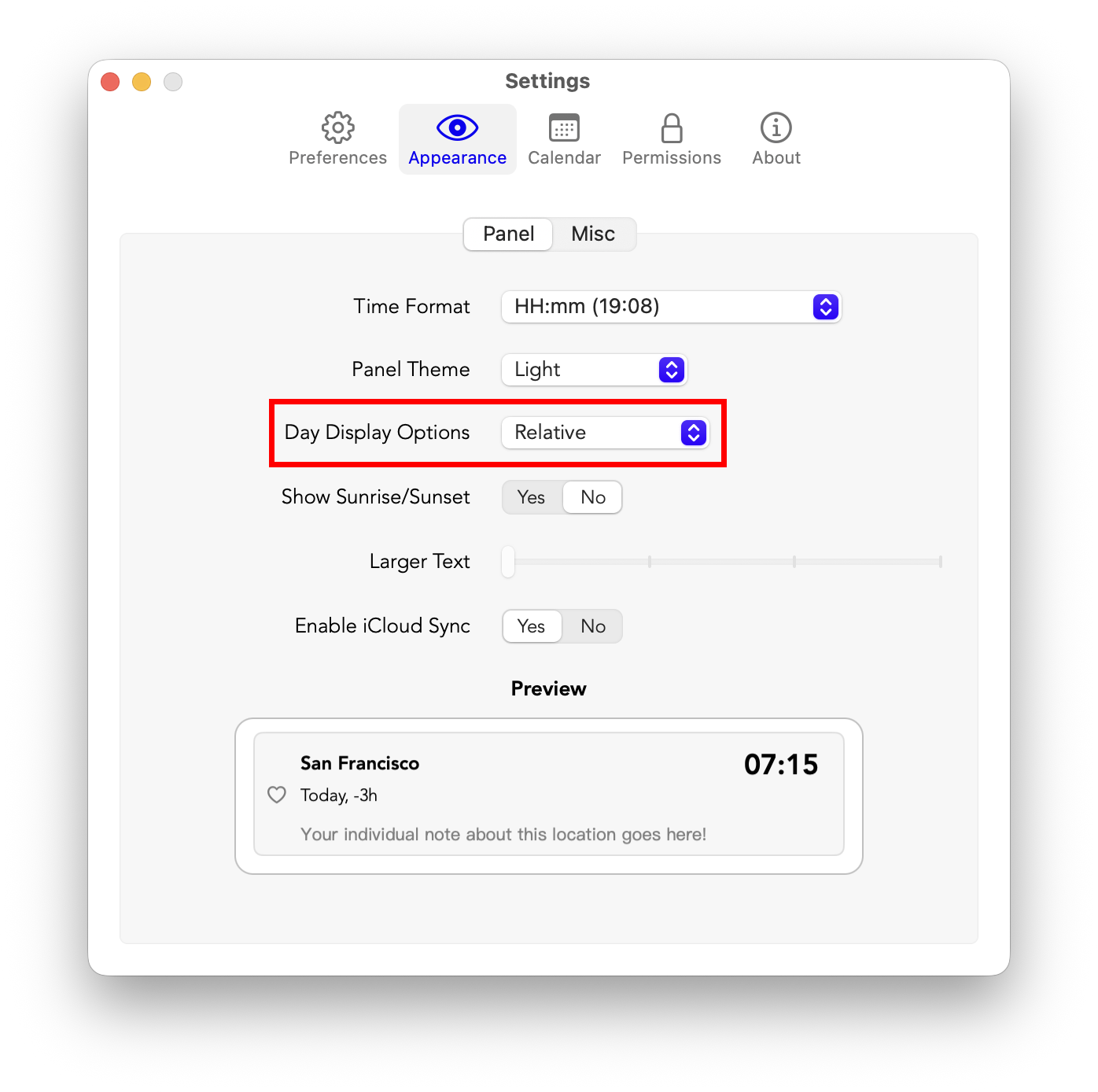
Good news — Clocker already supports this! You can choose what appears alongside each timezone (Today/Tomorrow, the actual day of the week, the date, or the timezone abbreviation) from a single setting.
Open Clocker Preferences (gear icon, or Command + ,) and head to the Appearance tab. Under the Panel section, find Day Display Options and pick one of:
- Relative — e.g. Today
- Actual Day — e.g. Monday
- Date in mmm/dd — e.g. May 8
- Timezone — e.g. PDT
Pick Date in mmm/dd for the month-and-day view. The Preview card at the bottom of the Appearance tab updates live so you can see exactly how it'll look before closing Preferences.
Reset Clocker?
Occasionally, Clocker may enter a glitchy state. In such instances, your best course of action would be to reset it. Resetting entails re-adding your timezones and adjusting toggle settings according to your preferences. Here how you can reset Clocker:
- Make sure Clocker is closed (force quit through Activity Monitor if necessary)
- Open up the Terminal app and type in the command: defaults delete com.abhishek.Clocker
- Hit the return key
- Restart Clocker